Add your document portal to your phone's home screen
 Feb 12, 2024
Use Readin on your phone or tablet? Add the portal to your home screen so you can open it with one tap instead of searching through browser tabs.
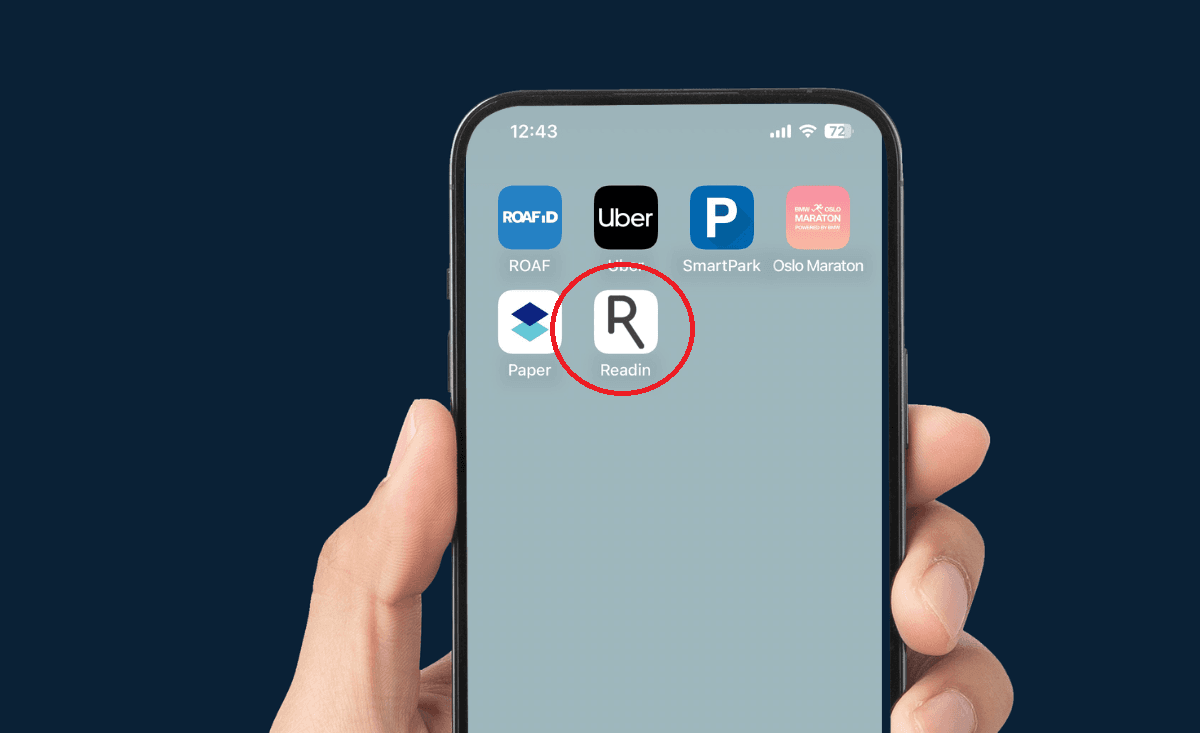
Add to Home Screen on iOS
- Open your document portal in Safari: Navigate to your Readin document portal website on your iPhone or iPad.
- Tap the Share icon: Look for the square with an upward arrow icon, usually found in the address bar or bottom menu.
- Select "Add to Home Screen": A list of options will appear. Scroll down and choose this one.
- Customize the name and icon (optional): You can change the default name to something more descriptive and choose a preferred icon from your photo library or website favicon.
- Tap "Add": You can now open the portal from your home screen.
Add to Home Screen on Android
- Open your document portal in Chrome: Navigate to your Readin document portal website on your Android phone or tablet using Chrome.
- Tap the three-dot menu: Look for the menu icon with three vertical dots, usually found in the top right corner.
- Select "Add to Home screen" or "install app": A menu will appear with various options. Choose this one.
- Customize the name and icon (optional): You can change the default name to something more descriptive and choose a preferred icon from your website favicon or even your photo library.
- Tap "Add": You can now open the portal from your home screen.
Your document portal is now one tap away on your phone or tablet.